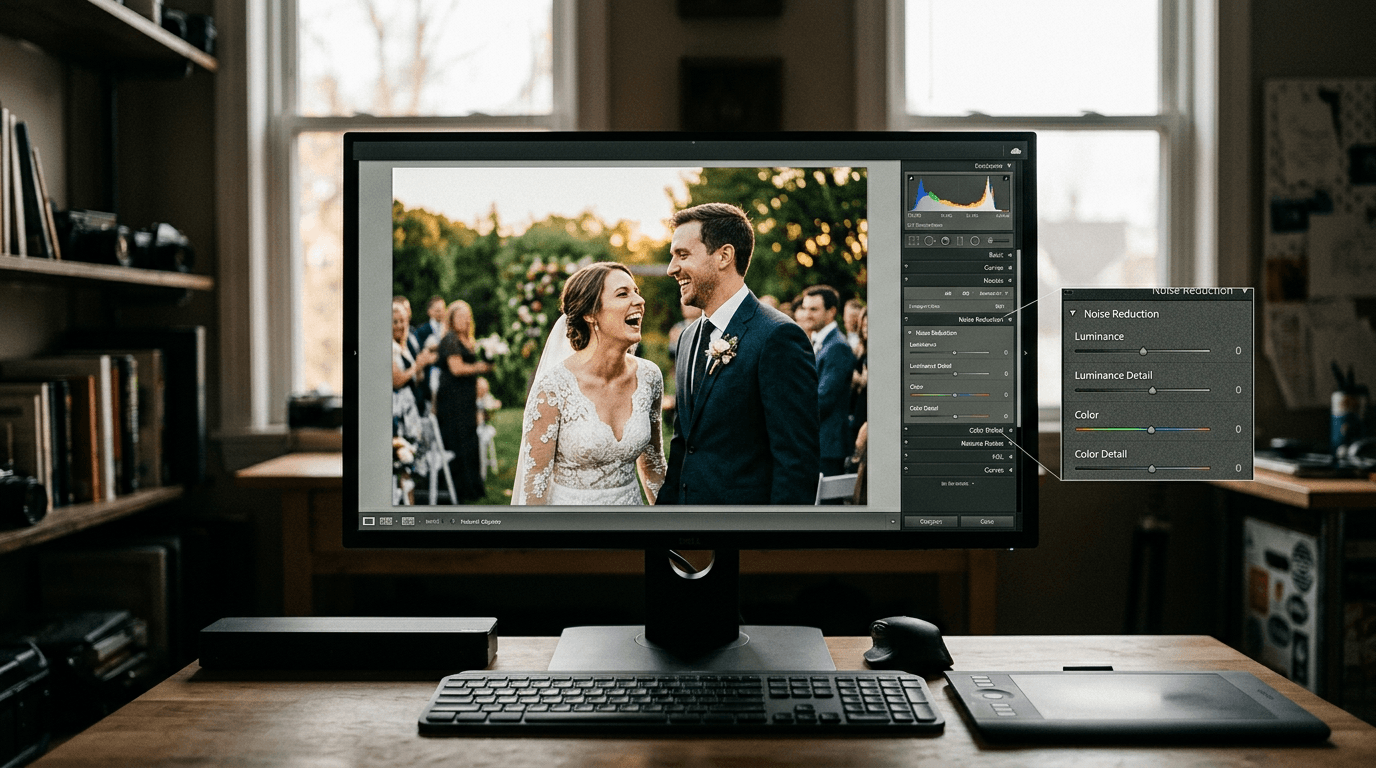
When it comes to Topaz Photo AI vs Lightroom Denoise — and now ON1 NoNoise AI — the honest answer for wedding photographers is this: all three tools will clean up your ISO 3200 reception shots well enough that no client will ever notice the difference at delivery size. The real decision is about speed, workflow fit, and what happens at the extremes — ISO 6400 and beyond, where the first dance and the cake cut live.
TL;DR
- Lightroom Denoise wins on color retention, simplicity, and cost (it's included in your subscription) — best for photographers who want a one-click solution inside their existing catalog.
- Topaz Photo AI gives you more control, slightly faster single-file processing, and excellent subject detail recovery at extreme ISOs — worth the $199 if you shoot dark venues regularly.
- ON1 NoNoise AI is a strong middle-ground option, especially if you're already in the ON1 ecosystem, with good batch tools and a clean preview interface.
Topaz Photo AI vs Lightroom Denoise: What Actually Matters at a Wedding Reception
Wedding receptions are the most noise-hostile environment you'll face as a photographer. You're typically shooting at ISO 1600–6400 under mixed tungsten and uplighting, with fast-moving subjects and zero margin for reshoot. The denoising decision you made three months ago when you bought your software suddenly becomes very real when you're staring at 800 RAW files from a ballroom at midnight.
To stress-test these three tools in 2026, we ran each one against a set of wedding reception RAW files: first-dance shots at ISO 3200, reception details at ISO 800 with severe shadow recovery, and toasts under candlelight at ISO 6400. The cameras ranged from a Sony A7 IV to a Canon R6 Mark II — both full-frame bodies that most working photographers are carrying right now.
Lightroom Denoise: The Workflow-First Option
Lightroom's Denoise AI does one thing and does it confidently — it gives you a single slider, a live preview tile, and a new DNG file at the end. That DNG stays in your catalog with all your develop adjustments intact, which means your culled-and-rated workflow doesn't get interrupted by a round-trip export.
In our reception tests, Lightroom Denoise at a setting of 40–50 handled ISO 3200 files beautifully, with excellent color retention in skin tones and fabric detail. The tungsten glow that makes reception photos feel warm stayed warm — it didn't shift or muddy the way some tools do when they aggressively reinterpret color noise. At ISO 6400, it still performed well, though the fine texture in dark suit fabric became slightly painterly at settings above 60.
Processing time averaged around 30 seconds per RAW file in our tests, consistent with benchmarks reported in independent comparisons. Batch processing works through Lightroom's sync settings — not as elegant as a dedicated batch queue, but functional for a 400-image gallery. The killer argument for Lightroom Denoise is that if you're already paying for Adobe Creative Cloud Photography, this tool costs you nothing extra.
Topaz Photo AI: More Control, Slightly Better at the Extremes
Topaz Photo AI is a different beast. Where Lightroom gives you one slider, Topaz gives you a choice of noise reduction models, a Strength slider, an Original Detail slider, and a Minor Deblur slider. Its Autopilot feature also analyzes each image on import and suggests its own settings — which is genuinely useful when you're batch-processing a gallery and don't want to make per-image decisions at 11pm.
In our ISO 6400 first-dance shots, Topaz Photo AI recovered subject detail — the texture in a groom's lapel, the individual strands of a veil — slightly better than Lightroom when we matched the apparent noise reduction level by eye. The trade-off is that Topaz can introduce a subtle muddiness in color at aggressive settings, particularly in areas of flat sky or background bokeh. Keep your Strength setting moderate (20–30 for most reception scenarios) and the results stay clean.
Speed is a small but real win for Topaz: roughly 23 seconds per file in our tests compared to Lightroom's 30 seconds, which adds up across a full gallery. The software also lets you apply noise reduction to already-edited TIFFs and JPEGs — a feature that's genuinely useful if you've done your creative edit first and want to clean up noise as a final pass.
The price is now $199 a year as part of the Topaz Photo subscription (the one-time license was retired in 2026), which removes the argument that used to win over photographers who dislike subscription fatigue. Topaz does have a solid record of software longevity — its older standalone tools have kept working in updated host applications for over a decade — but you are now paying for that every year.
One practical note: you can launch Topaz Photo AI directly from Lightroom Classic via File > Plug-In Extras > Process in Topaz Photo AI, which lets it process your actual RAW file rather than a TIFF export. This produces noticeably better results than the old round-trip TIFF workflow that many tutorials still describe.
ON1 NoNoise AI: The Underdog Worth Considering
ON1 NoNoise AI doesn't get as much attention in head-to-head comparisons as the other two, but it's a capable tool that fits naturally into a specific kind of photographer's workflow. If you're already using ON1 Photo RAW as a Lightroom alternative — and more photographers are making that switch, as we covered in our review of Lightroom alternatives for wedding photographers — then NoNoise AI is essentially already in your toolkit.
The interface sits between Lightroom and Topaz in complexity. You get model selection (Standard and High Quality modes), masking controls, and a split-view comparison that's easy to read. In our reception tests, NoNoise AI at its High Quality setting performed on par with Lightroom Denoise at moderate ISOs, with clean skin tones and natural-looking fabric texture.
At ISO 6400, NoNoise AI trailed Topaz Photo AI slightly in detail recovery — particularly in high-frequency textures like sequined dresses or wood-paneled reception halls. Color retention was competitive with Lightroom, though not consistently better. Batch processing is a genuine strength here: ON1 handles batch noise reduction more elegantly than Lightroom's sync workaround, and it integrates with Lightroom as a plugin if you don't want to fully switch ecosystems.
The Reception-Specific Test: Skin, Fabric, and Candlelight
For wedding photographers specifically, the test that matters isn't a Milky Way at ISO 4000 — it's a bride's face under candlelight at ISO 3200 with a reception band blurred in the background. We ran exactly this scenario across all three tools.
Skin tones: Lightroom Denoise preserved the most natural skin color without any post-correction needed. Topaz Photo AI was a close second. ON1 NoNoise AI was competitive but occasionally introduced a very slight warmth shift at high settings that needed a quick temperature tweak to fix.
Fine fabric detail: Topaz Photo AI won this category, recovering lace texture and sequin patterns at ISO 6400 more convincingly than the other two tools. Lightroom Denoise was close, but leaned toward smoother rather than sharper when in doubt. ON1 fell in the middle.
Background bokeh: All three tools handled out-of-focus backgrounds cleanly at moderate settings. Topaz occasionally introduced slight banding in smooth bokeh at high Strength values — something to watch if you're shooting wide open in dark venues.
Processing speed at scale: For a 600-image reception gallery, Topaz Photo AI's Autopilot batch came in fastest in our informal timing, with Lightroom and ON1 close behind. None of these tools will bottleneck a same-week delivery turnaround. If delivery speed is a pressure point for your business, the workflow notes in our post on the 48-hour wedding photo delivery window are worth reading alongside this comparison.
Pricing and the Subscription Question
This is where the comparison gets practical fast, and where 2026 changed the answer. Topaz no longer sells Photo AI as a one-time purchase: it now ships inside the Topaz Photo subscription at $199 a year paid upfront, $25 a month on an annual plan, or $39 month to month. Lightroom Denoise is included in the $11.99 a month Lightroom plan you probably already pay for. ON1 is the only one of the three still selling a perpetual license: NoNoise AI 2027 is $69.99 one-time, or $179.99 a year inside ON1 Photo Studio.
| Tool | Price (September 2026) | Model |
|---|---|---|
| Topaz Photo (Photo AI) | $199 / year upfront, $25 / month annual, $39 month to month | Subscription (the one-time license is gone) |
| Lightroom Denoise | Included in the $11.99 / month Lightroom plan | Subscription |
| ON1 NoNoise AI 2027 | $69.99 one-time, or $179.99 / year in ON1 Photo Studio | Perpetual license available |
Sources: Topaz Photo pricing, Adobe Lightroom plans and ON1 NoNoise AI, all checked September 20, 2026. NoNoise AI 2027 was on pre-order at that date, shipping late September.
If you're shooting two or three weddings a month in venues where ISO 3200 and above is routine, $199 a year for Topaz still pays for itself in print-album quality, but treat it as a recurring cost, not a purchase. If you shoot reasonably lit venues and your priority is efficient delivery, Lightroom Denoise is already paid for. And if you want to own a dedicated denoiser outright, ON1 at $69.99 is now the only way to do it.
For a broader look at how editing tool choices interact with your overall delivery workflow, our guide on photo editing and culling tools for event photographers in 2026 covers the full picture including culling speed, AI editing integration, and gallery delivery.
Which One Should You Use?
There's no universally correct answer, but here's how to think about it for your specific situation:
Choose Lightroom Denoise if you want a seamless single-app workflow, your venues are moderately lit (ISO 800–3200), and you don't want to add another tool or cost to your stack. The one-slider simplicity is a feature, not a limitation — it consistently produces natural-looking results that need minimal correction.
Choose Topaz Photo AI if you regularly shoot dark venues at ISO 3200–6400 or higher, you want Autopilot batch processing with per-image intelligence, and you value fine detail recovery in complex textures like lace, beading, or dramatic reception lighting. Just budget for it as a $199-a-year subscription, because the one-time license no longer exists.
Choose ON1 NoNoise AI if you're already in the ON1 ecosystem, want a batch-friendly plugin that works with both Lightroom and ON1 Photo RAW, and your denoise needs fall in the moderate-to-difficult range rather than the extreme high-ISO end. It's also worth considering if you're evaluating a full switch away from Adobe, since it pairs naturally with ON1's broader editing suite.
The honest bottom line — echoed by independent testers across multiple comparison reviews — is that at display sizes and standard print dimensions, clients won't distinguish between any of these three tools. The pixel-peeping differences visible at 300–400% magnification simply don't translate to a gallery view or a 12x18 album spread. What matters more is whether the tool fits your speed requirements and integrates smoothly into how you already work. You can also explore how your editing software choices interact with the culling step in our Photo Mechanic vs Lightroom culling speed test.
After the Edit: Getting Your Photos to Every Guest
Once you've run your denoised gallery through your final edits, the next challenge is getting those images in front of every person who was in the room — not just the couple. FindMe Photo lets you share your wedding gallery via a QR code or custom link, and guests find their own photos instantly using AI face search. No app download, no login friction, just instant photo discovery for every guest. It's one of the most effective ways to increase gallery views, drive print sales, and generate referrals from people who were never even on your client list. See how it works at findme.photo.
Frequently asked questions
Is Topaz Photo AI better than Lightroom Denoise for wedding photos?
It depends on your priority. Topaz Photo AI gives you more controls — multiple models, a minor deblur slider, and Autopilot suggestions — and tends to recover subject detail slightly better at very high ISOs like 6400 or above. Lightroom Denoise wins on color retention, simplicity, and seamless RAW workflow since it stays inside your existing catalog as a DNG. For most wedding reception scenarios, the two are extremely close, and either will produce client-ready images.
What is ON1 NoNoise AI and how does it compare?
ON1 NoNoise AI is a standalone and plugin-based noise reduction tool that applies deep learning to reduce luminance and color noise. It sits between Topaz Photo AI and Lightroom Denoise in terms of interface complexity, offering batch processing and a built-in preview. For wedding photographers already using ON1 Photo RAW, it integrates cleanly. In side-by-side tests at ISO 3200–6400, it performs comparably to both competitors, though fine detail recovery can lag slightly behind Topaz at extreme ISOs.
Does Lightroom Denoise work on RAW files?
Yes. Lightroom Denoise AI processes your original RAW file and outputs a new DNG, keeping all your develop settings intact. The one-slider interface is intentionally simple — most photographers find a setting of 30–50 handles the majority of reception-light noise without over-smoothing skin texture.
Which denoise tool is fastest for batch processing wedding galleries?
Lightroom Denoise and ON1 NoNoise AI both support batch processing natively. Topaz Photo AI also handles batches via its Autopilot feature, analyzing each image and applying denoise, sharpen, and upscale as needed. In timed tests, Topaz Photo AI processes a single RAW slightly faster than Lightroom (roughly 23 seconds vs 30 seconds per file), but both scale similarly when batching a full 800-image wedding gallery.
How much does Topaz Photo AI cost compared to Lightroom and ON1 NoNoise?
As of September 2026 Topaz Photo AI is subscription-only inside Topaz Photo: $199 a year upfront, $25 a month on an annual plan, or $39 month to month. Lightroom Denoise is included in the $11.99 a month Lightroom plan. ON1 NoNoise AI 2027 is $69.99 as a one-time perpetual license, or $179.99 a year inside ON1 Photo Studio, which makes it the cheapest way to own a dedicated denoiser outright.
Browse by topic
The new photo gallery for pro event photographers.
Expand your reach: 10× more guests open your galleries.
Why the whole room opens it
One link per event. No signup, no login, no app for your guests. Designed for mobile and access on the go.

Their face is their password. A selfie finds their photos in under 2 seconds. Selfie Search comes in every plan, including Free+.
They share it, or buy from your store. Your prices, your brand, your customers. Set up your store for digital and/or print copies connected to your Stripe.
Open your Free+ account today — every Growth feature free for 30 days — and onboard the fastest, coolest way to share your galleries.